Modules Overview
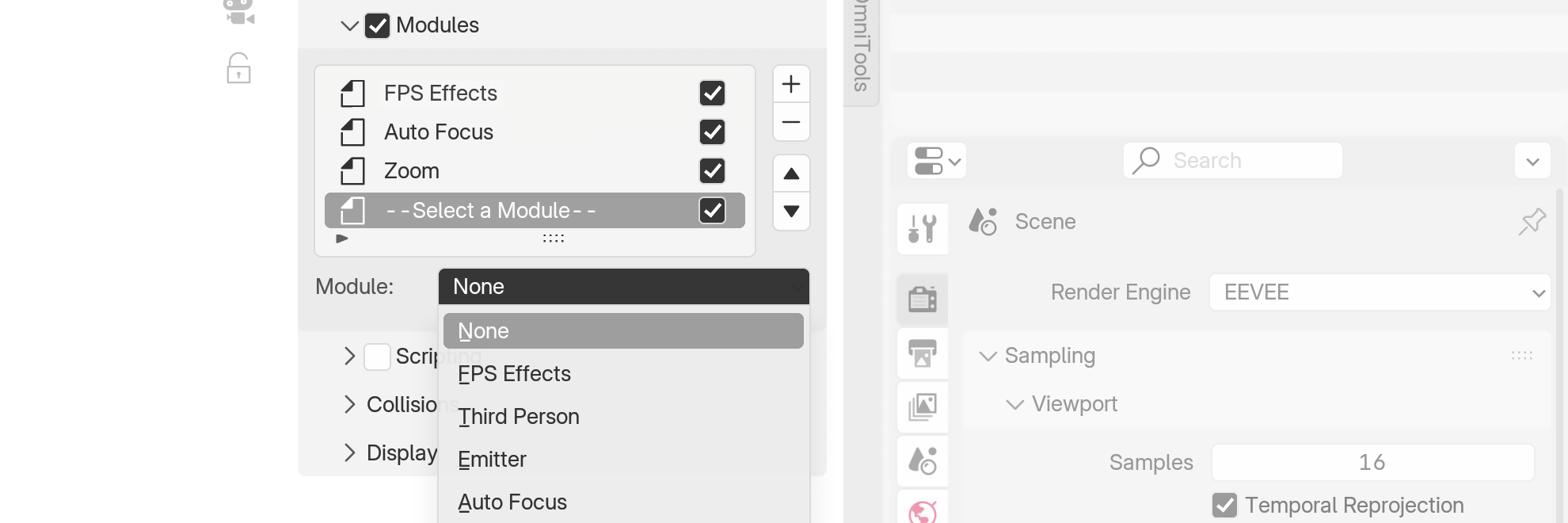
Since version 2, OmniStep features a modular system where additional functionality can be selectively activated. Modules are loaded from the module directory and scanned at startup, so new modules can be added or existing ones edited without waiting for a new release. Modules can also work together - for example, Autofocus accounts for changes made by Camera Switcher.
Included Modules
The following modules are currently included with OmniStep v2.0.0. This list will grow over time.
FPS Effect
The FPS Effects module adds first-person camera effects that respond to player movement, including head bob, strafing and turning lean, ground slope tilting, idle breathing motion, and a sprint FOV rush. All effects are physics-driven and blend automatically based on movement speed and direction.
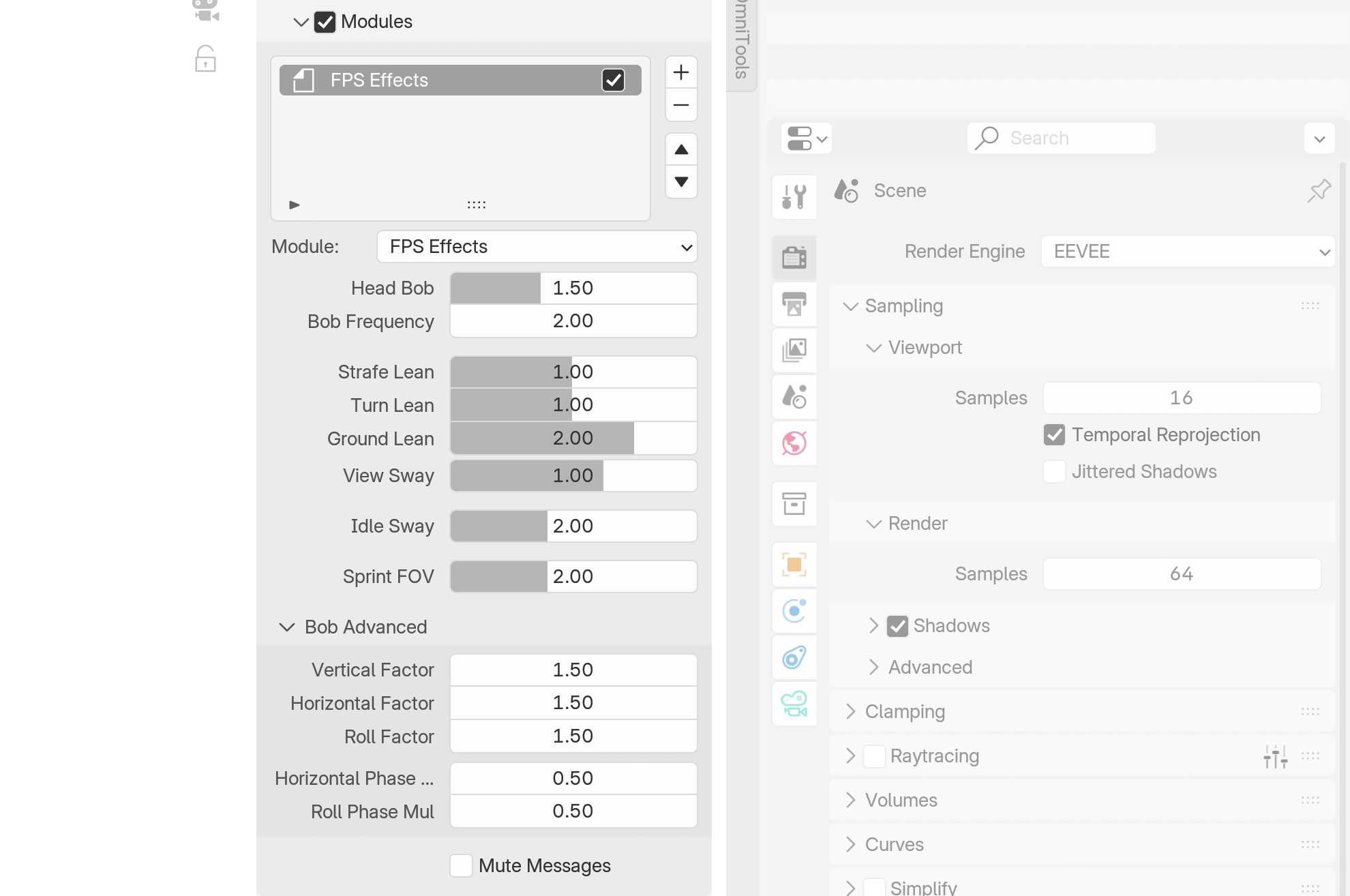
- Head Bob Walking/running head bob intensity.
- Bob Frequency Base step frequency in Hz. Scales up slightly at higher speeds.
- Strafe Lean Camera roll when strafing left or right.
- Turn Lean Camera roll when rotating the view horizontally.
- Ground Lean Camera tilt following the ground slope - leans into ramps and uneven terrain.
- View Sway Camera sway when rotating the view horizontally.
- Idle Sway Subtle breathing motion when standing still.
- Sprint FOV Fov increase when running. Higher values create a stronger speed rush effect.
- Mute Messages Mutes on-screen messages for this module, regardless of the global 'Display > Show Messages' setting.
Bob Advanced
- Vertical Factor Fine tune Head Bob vertical component.
- Horizontal Factor Fine tune Head Bob horizontal component.
- Roll Factor Fine tune Head Bob roll component.
- Horizontal Phase Mul Fine tune Head Bob horizontal phase.
- Roll Phase Mul Fine tune Head Bob roll phase.
Third Person
The Third Person module switches the view to a third-person camera that follows behind the player. It places a visible player model in the scene - either a built-in capsule mesh or a custom object - and positions the camera at a configurable offset from the player's head. The camera uses rotation damping for smooth follow behavior and includes collision detection to prevent clipping through walls. Three offset slots (A, B, C) allow quick switching between different camera positions during a session.
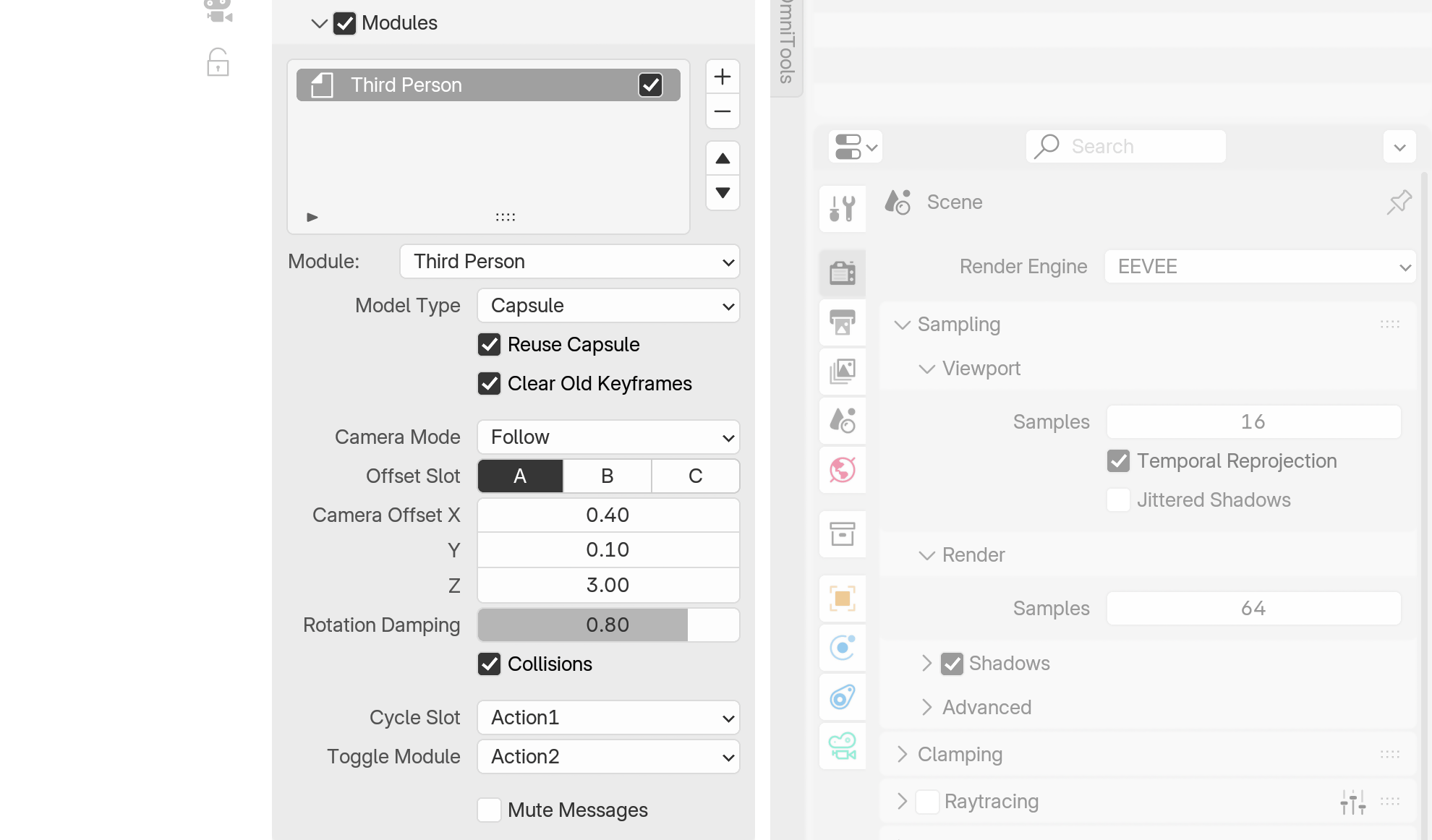
- Model Type Use a built-in Capsule Mesh as player stand-in, or select a custom Mesh. The default capsule does not fit well with Fly Mode.
- Reuse Capsule Keeps the model in the scene after the first run. It will be reused when in Capsule mode. You can edit it, add materials etc. It is identified by name - don't change that.
- Player Model Custom mesh object to use as the player model. Only available when Model Type is set to Custom.
- Aim Model Optional aim model positioned at the view location, corresponding to the standard FPS camera view without damping.
-
Clear Old Keyframes Delete old keyframes when starting or restarting.
-
Camera Mode Set to 'Follow' for automatic third-person tracking, or 'Custom' to use any animated or static view.
- Offset Slot Switch between three camera offset presets (A, B, C).
- Camera Offset Camera position relative to the player head. X is left/right, Y is forward/back, Z is up/down.
- Rotation Damping Smooths the camera rotation when following the player. Higher values create a more cinematic, delayed follow.
- Collisions Prevents the camera from clipping through walls by using collision detection.
- Cycle Slot Action binding to change the Camera Offset Slot during a session.
- Toggle Module Action binding to toggle the Third Person module on or off.
- Mute Messages Mutes on-screen messages for this module, regardless of the global 'Display > Show Messages' setting.
Emitter
The Emitter module lets you shoot objects from an Empty's position and orientation while navigating. It duplicates a source object on each emission, animates it along its trajectory using either ray-based travel or rigid body physics, and manages an object pool for performance. Emitted objects collide with the scene geometry and can optionally stick to surfaces. Multiple emitters are supported through child objects, firing either in sync or cycling through them.
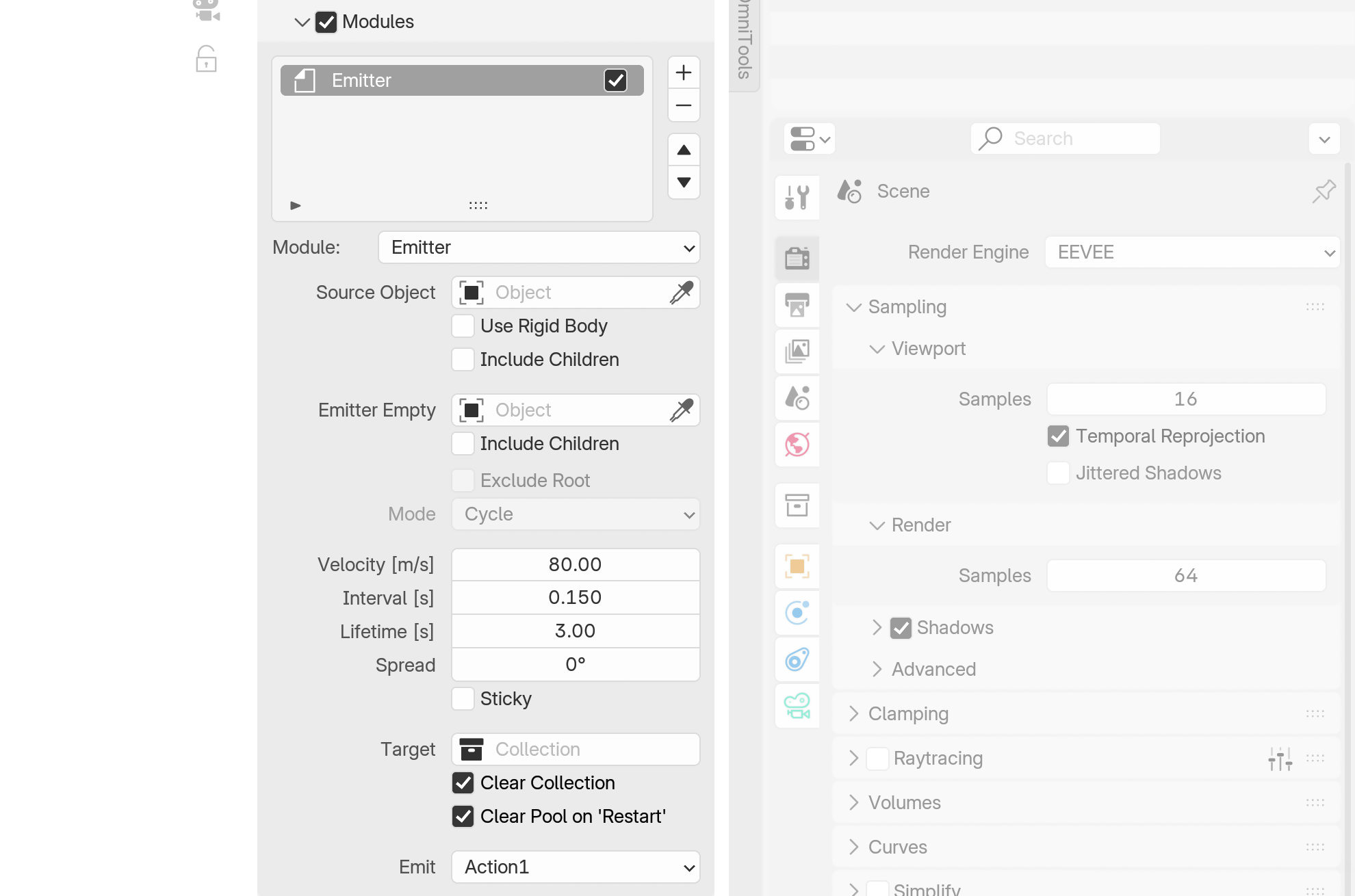
- Source Object The object to emit. A duplicate is created for each emission.
- Use Rigid Body Emitted objects use rigid body physics instead of ray-based travel. The source object is automatically set up as an active rigid body.
- Include Children Include the source object's children when duplicating.
- Emitter Empty The Empty that defines the emission origin and direction. Objects are fired along the Empty's local negative Z-axis.
- Include Children All children of the Emitter Empty also become emitters.
- Exclude Root Exclude the Emitter Empty itself when its children are included.
- Mode When including children, they emit either in Sync (all at once) or Cycle (one after another).
- Velocity [m/s] Speed of the emitted object.
- Interval [s] Minimum time between emissions.
- Lifetime [s] How long an emitted object stays visible before being recycled.
- Spread Random angular spread applied to each emission for a scatter effect.
- Sticky Emitted objects stick to the target surface until their lifetime is reached, e.g. arrows. Not available with Rigid Body.
- Target Target collection where emitted objects are stored. If not set, a new collection named 'OStep.EmitterOut' will be created.
- Clear Collection Clears the target collection when OmniStep starts.
- Clear Pool on 'Restart' Clears the active object pool when restarting. Useful when the collection is not empty at start.
- Emit Action binding for firing.
Auto Focus
The AutoFocus module provides real-time depth-of-field focusing for camera views. It casts a ray from the camera into the scene and smoothly adjusts the focus distance to match whatever surface is in front of the lens. Focus distance changes are animated with configurable speed, and the results can be recorded as keyframes on the active camera.
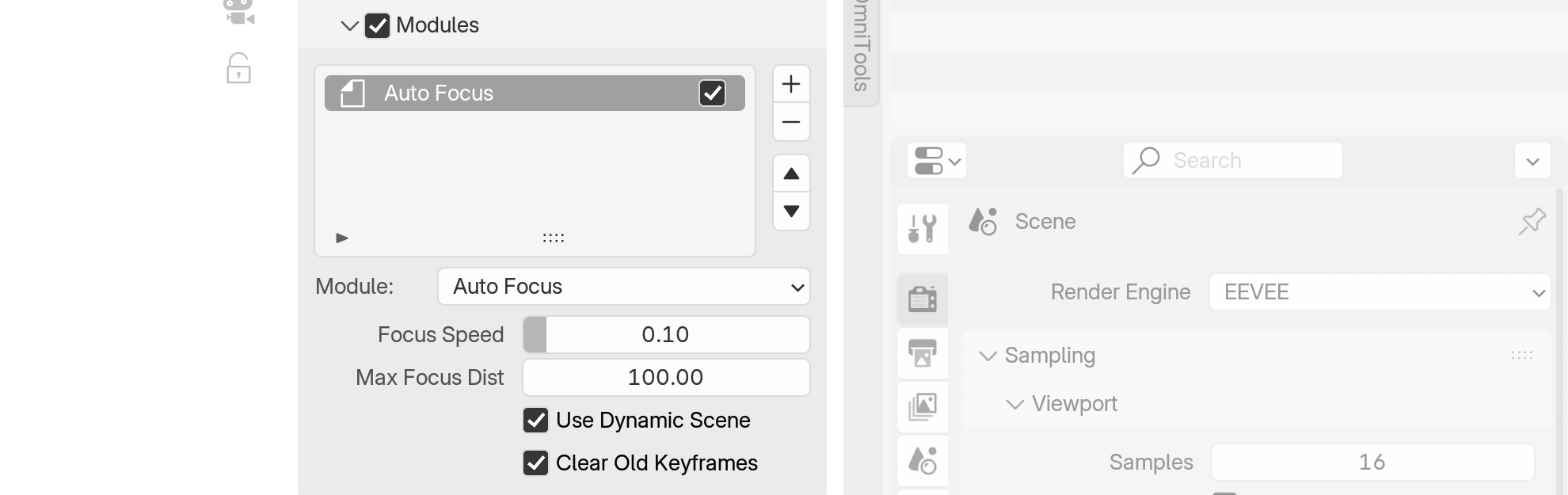
- Focus Speed How quickly the focus adjusts to new distances. Lower values create a slower, more cinematic rack focus effect.
- Max Focus Dist Default maximum focus distance. Increase this when working with very long focal lengths.
- Use Dynamic Scene Works with animated geometry, best choice in most cases. Turn this off to use OmniStep's internal collision system if the scene is heavy or you need it to respect excluded/included collections.
- Clear Old Keyframes Delete old focus distance keyframes when recording the camera.
Zoom
The Zoom module provides real-time focal length control during navigation. It offers two modes: Continuous, where you freely zoom in and out with separate action bindings, and Hold, where pressing and holding an action smoothly zooms to a target focal length and releases back when let go. Zoom changes use non-linear scaling for natural-feeling control and can be recorded as keyframes.
- Zoom Mode Choose between 'Continuous' for free zoom control, or 'Hold' for press-and-release zoom to a target value.
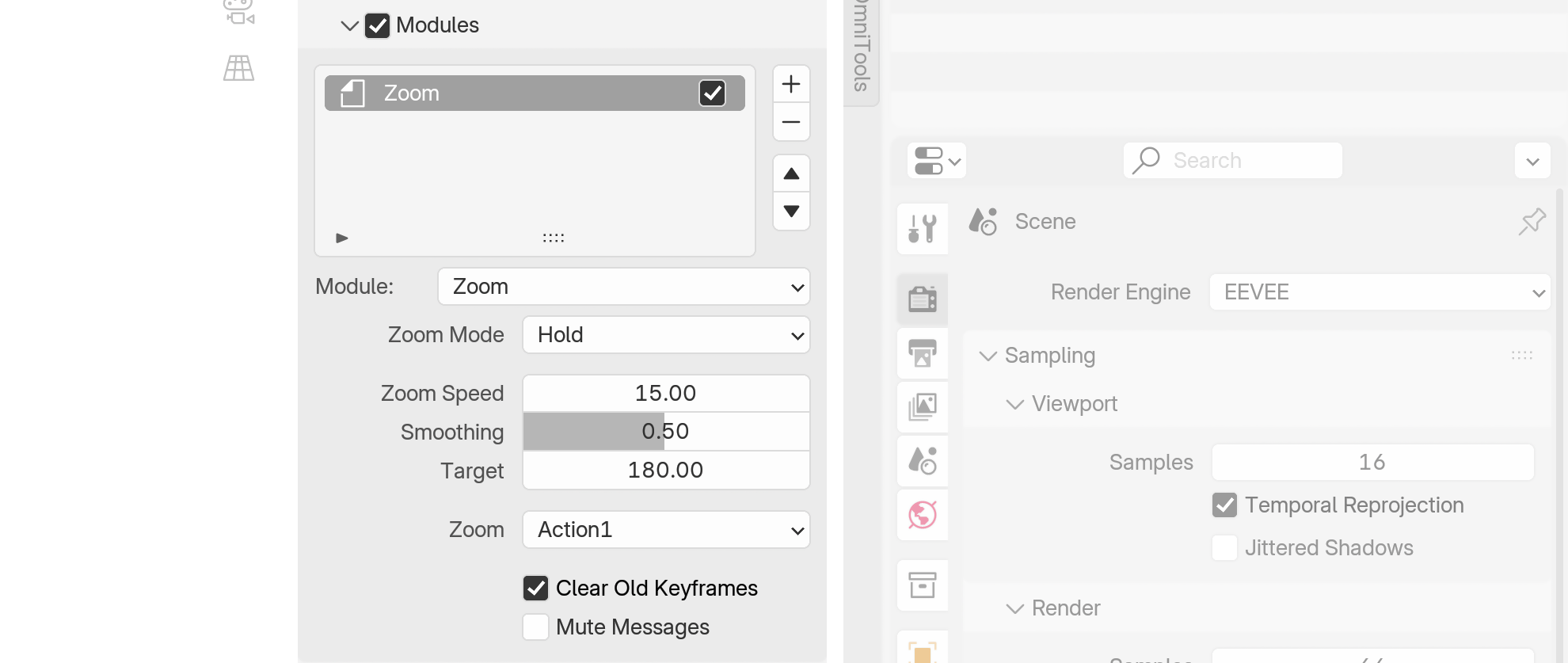
Hold Mode
- Zoom Speed How fast the focal length changes toward the target while holding.
- Smoothing Smooths the zoom transition.
- Target The target focal length when the action is held.
- Zoom Action binding to hold for zooming.
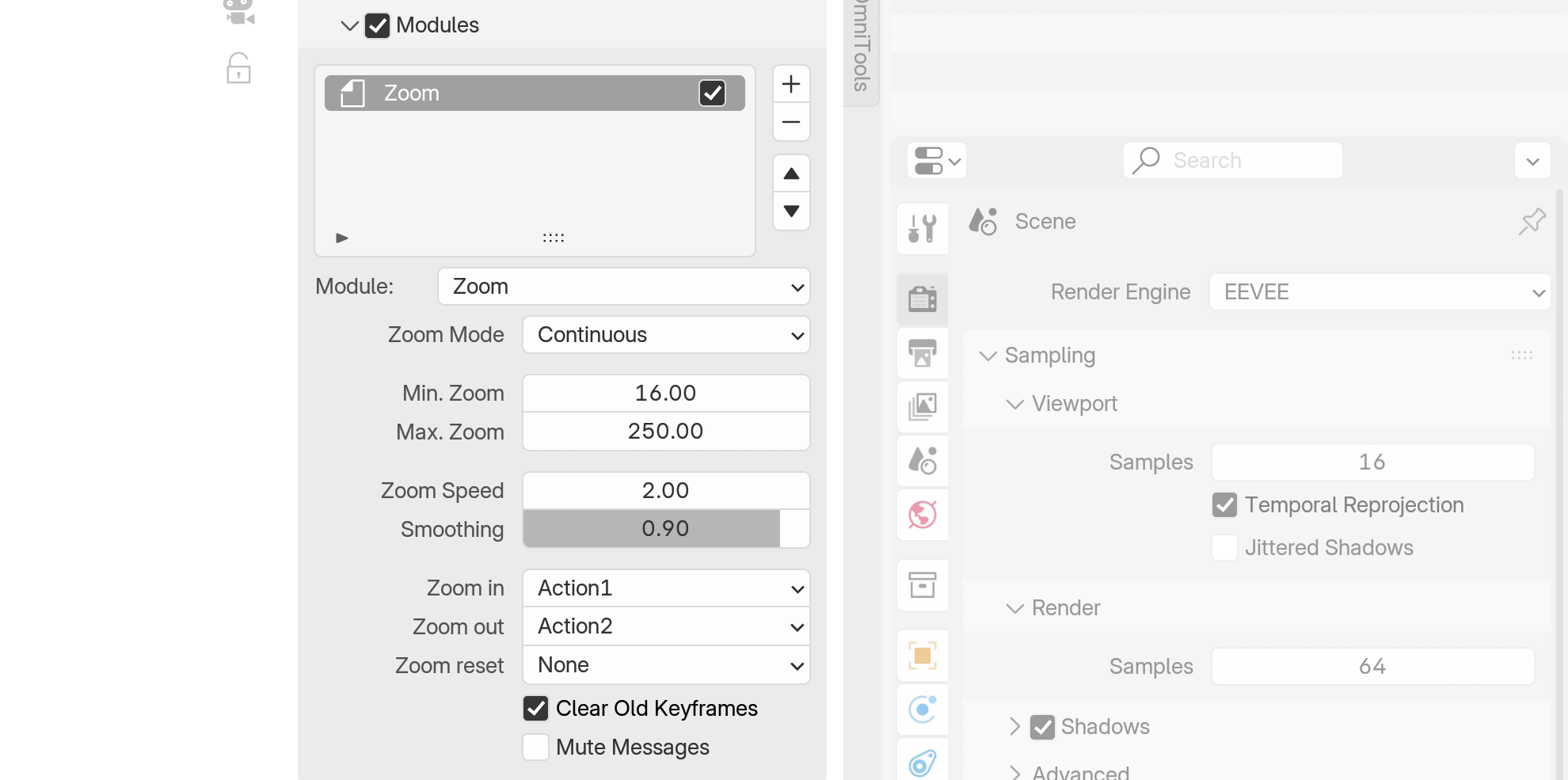
Continuous Mode
- Min. Zoom Minimum focal length limit.
- Max. Zoom Maximum focal length limit.
- Zoom Speed How fast the focal length changes while holding the zoom action.
- Smoothing Smooths the zoom transition. Higher values create a slower, more gradual change.
- Zoom in Action binding to zoom in (increase focal length).
- Zoom out Action binding to zoom out (decrease focal length).
-
Zoom reset Action binding to reset to the original focal length.
-
Clear Old Keyframes Delete old focal length keyframes when starting.
- Mute Messages Mutes on-screen messages for this module, regardless of the global 'Display > Show Messages' setting.
Cam Creator
The Camera Creator module lets you place new cameras at your current view position during navigation. Each press duplicates the active camera with its settings and positions it where you're looking - useful for quickly scouting and marking camera positions throughout a scene.
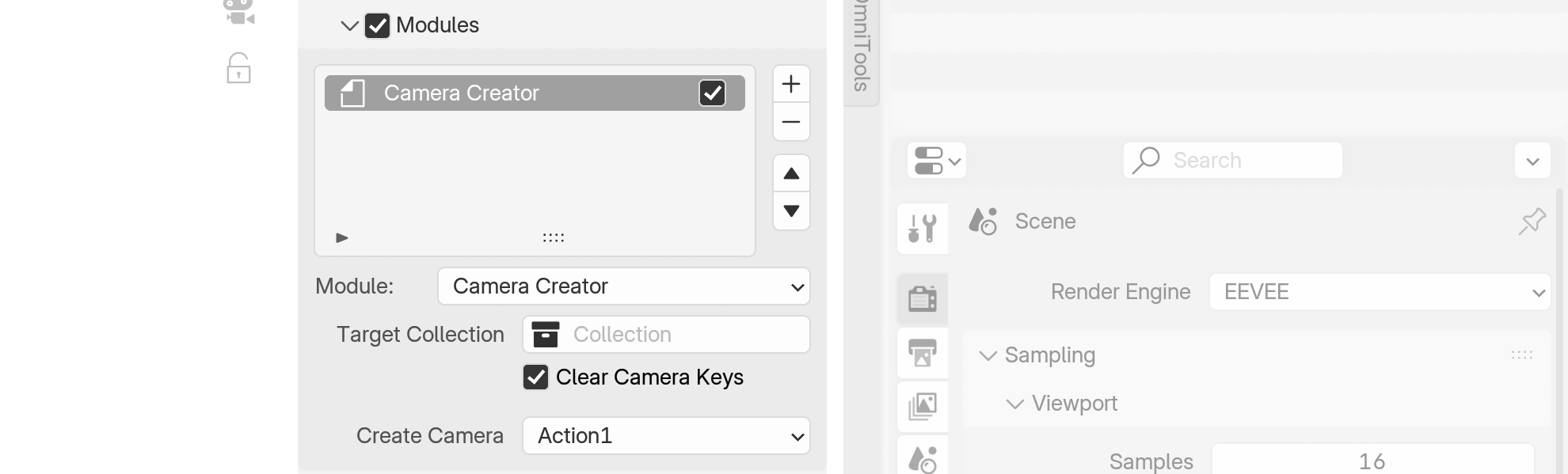
- Target Collection Collection where created cameras are stored. If not set, they are added to the active collection.
- Clear Camera Keys Clear all animation keyframes on the new camera when copying.
- Create Camera Action binding to place a new camera at the current view.
Cam Switcher
The Camera Switcher module lets you cycle through cameras in your scene during navigation. Cameras can be selected either from a collection or by matching names with wildcard patterns. Switching teleports the player to the new camera's position, making it easy to jump between predefined viewpoints.
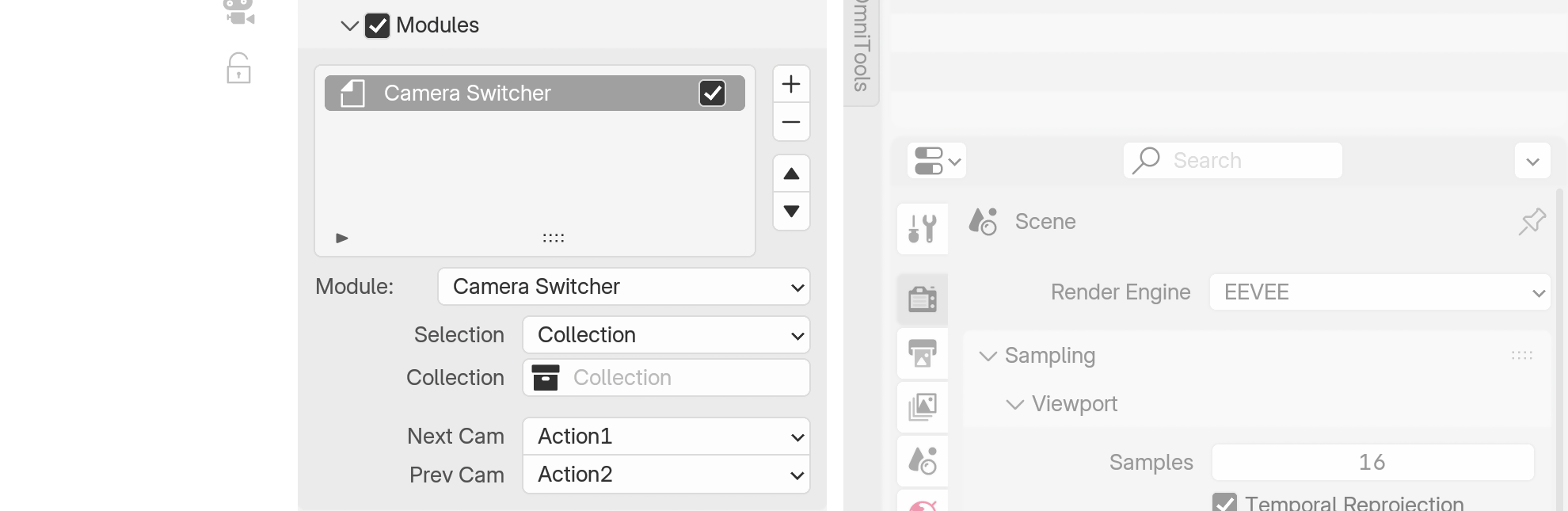
- Selection Choose cameras from a 'Collection' or by 'Wildcard' name matching.
- Collection Collection containing the cameras to cycle through.
- Name Match Select cameras by name using wildcards (e.g.
Camera*,*001). Supports fnmatch-style patterns. - Next Cam Action binding to switch to the next camera.
- Prev Cam Action binding to switch to the previous camera.