Quickstart
You can find OmniStep in the 3D Viewport Sidebar under 'OmniTools'.
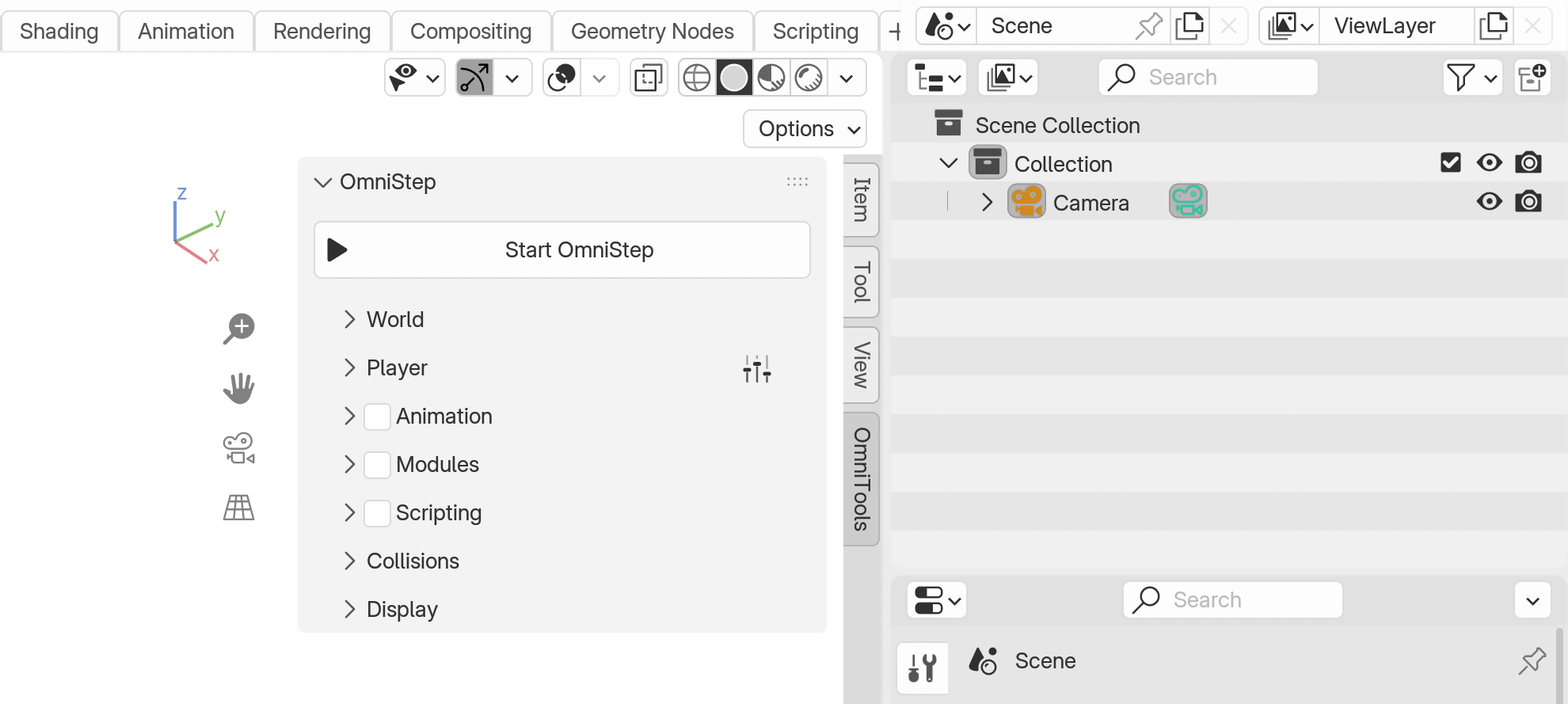
To spawn directly into your scene from the current view, press ▶ Start OmniStep
By default, OmniStep will use the current view or camera as the starting point. When done, press Enter to apply the changes to the current view or camera or Esc to revert the changes.
Controls
OmniStep supports the same input devices as Blender. This includes keyboards, mice, NDOF devices and additionally Gamepads.
By default, the player is controlled with the following keymap:
| Key(s) | Action / Description |
|---|---|
| W A S D | Moving / Flying |
| Q E | Fly Down / Up (Roll when in 'Trackball Rotation' mode) |
| Left Ctrl | Crouch (Down in 'Fly Mode') |
| Space | Jump (Up in 'Fly Mode') |
| Shift | Walk / Run Modifier |
| Tab | Toggle between Walk / Fly Modes |
| MouseWheel Up MouseWheel Down |
Increases / Decreases a global multiplier that controls movement and teleport speed |
| Middle Mouse | Resets the speed multiplier to the defaults |
| Z | Teleport to aimed-at target |
| R | Respawn |
| X | Restarts the timeline when animating (and restarts the recording if enabled) |
| Left Mouse | Action1 - reserved for modules and userscripts |
| Right Mouse | Action2 - reserved for modules and userscripts |
| 1 2 3 4 | Action3 to Action6 - reserved for modules and userscripts |
The look direction is controlled with the mouse. The sensitivity and y-axis invert can be set in the add-on preferences.
Customization
All keys, mouse and controller bindings can be remapped in the add-on preferences
Gamepad Support
Gamepad support is disabled by default. Enable it in the add-on preferences to use a gamepad. Support is currently available only for Windows and XInput compatible devices (e.g., Xbox Controller and similar).
World
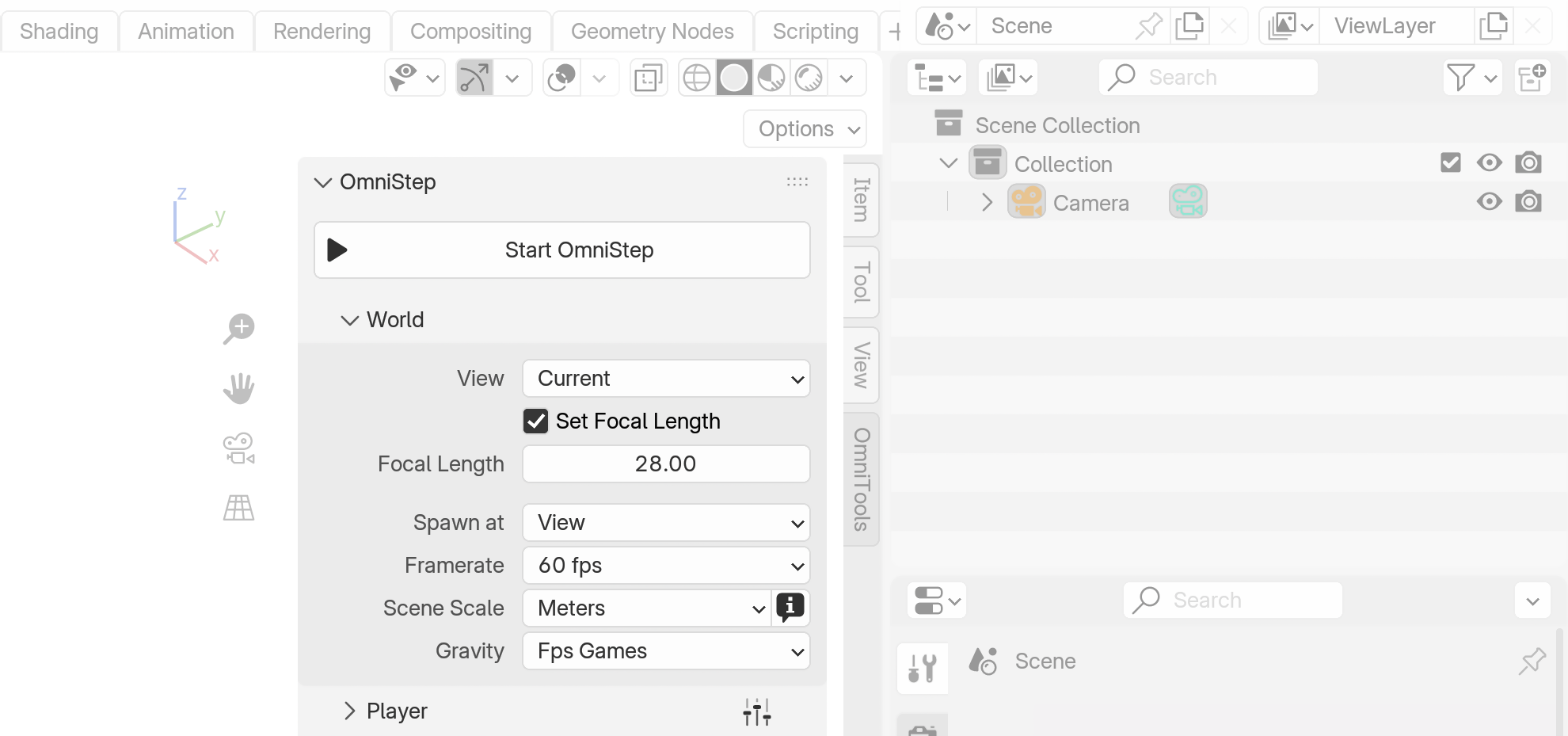
In the World section, you can configure essential scene parameters for OmniStep. You can set the startup view behavior and adjust the focal length for perspective views. OmniStep can also use specific spawn points from a collection of Empties. Additionally, you can control the target framerate, scene scale, and world gravity, ensuring accurate movement physics regardless of your scene's scale. Gravity presets are available, but you can customize the value.
Player
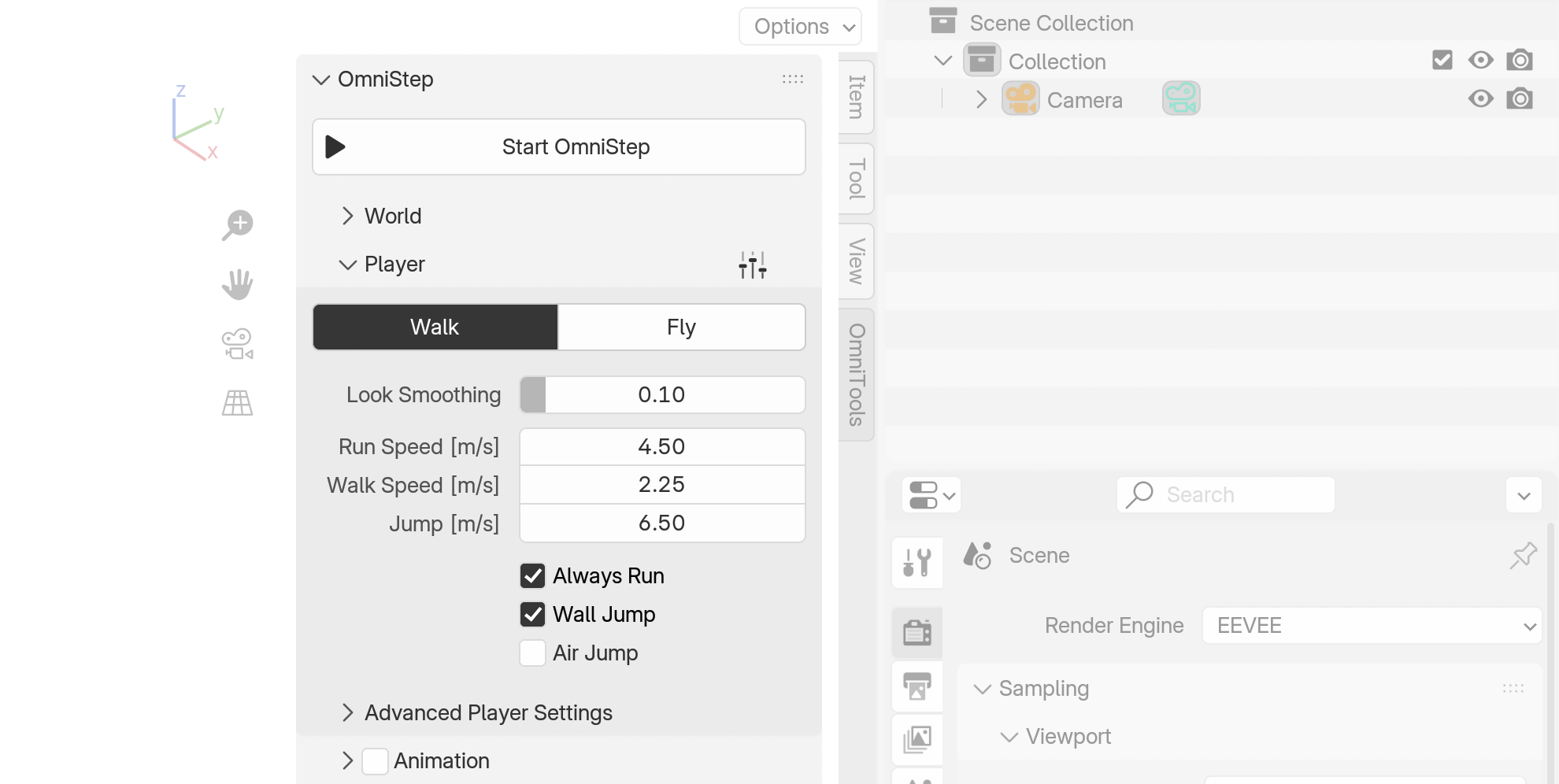
In the Player section, you can adjust OmniStep's Walk Mode with settings like run/walk speed and jump height. Fly Mode offers physics-based flight with adjustable speed, acceleration, and radial view control. Advanced settings allow for further customization, including fine-tuning motion damping and teleport speed. You can save your preferred configurations as custom presets for easy reuse.
Animation
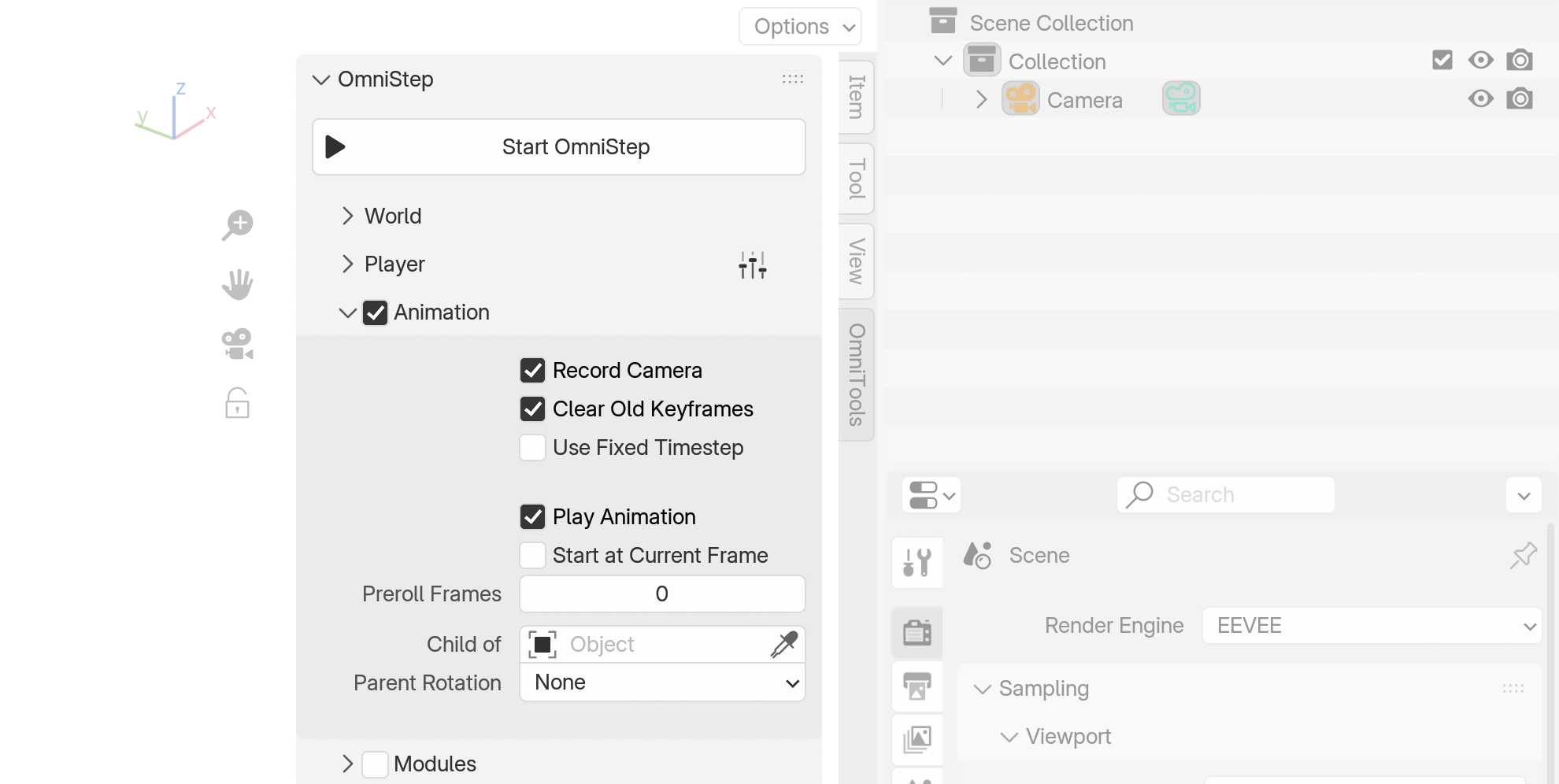 OmniStep allows you to record all movement. Ensure a camera is present in the scene, and activate the 'Animation' section, as well as 'Record Animation'. This writes location and rotation keyframes for the active camera.
Make sure the view is set to the camera or the 'World Settings' view is set to 'Active Camera'.
When the playhead reaches the end, the recording stops, but you can continue moving. At this point you can press X to restart the recording, overwriting the last recording.
Press Esc or Enter to end the Operator. In both cases the recording is preserved.
Modules
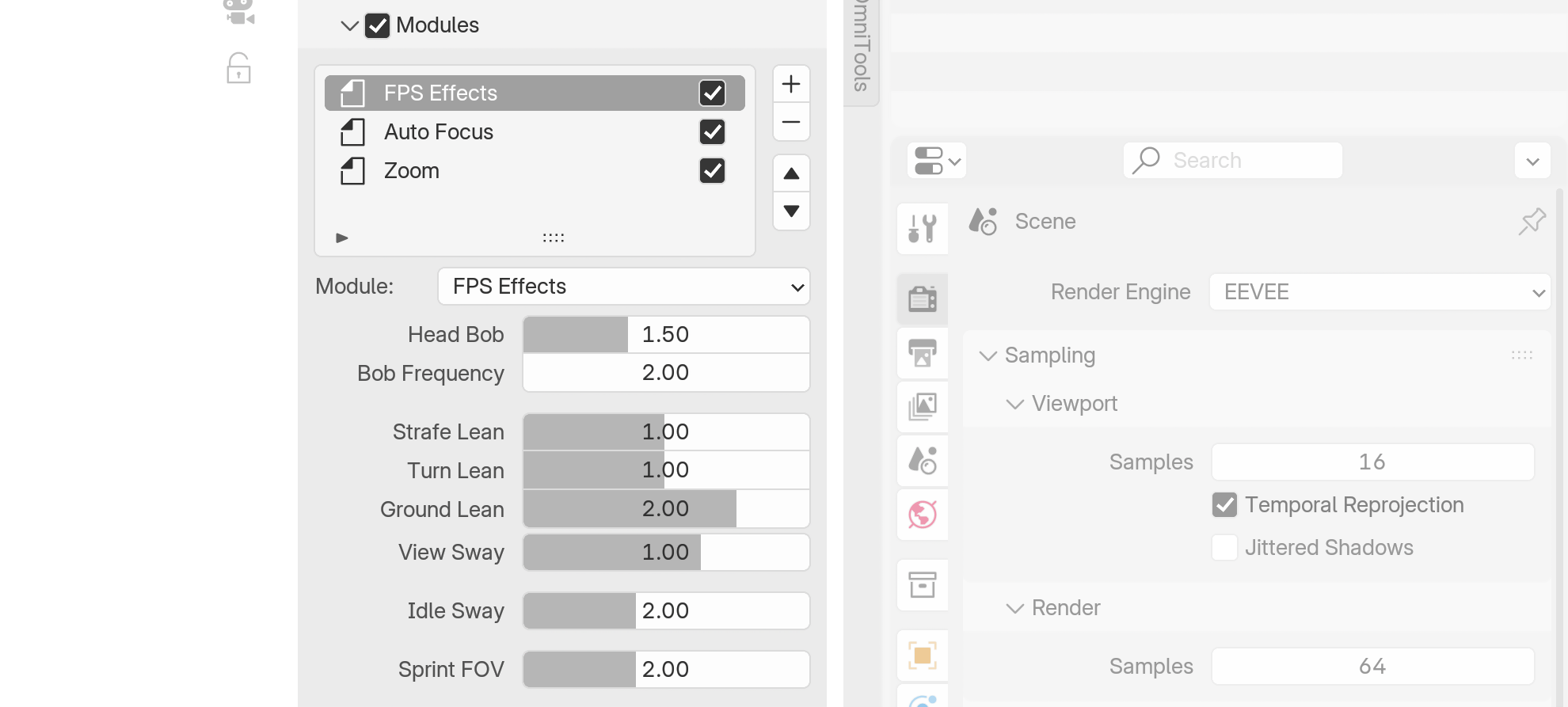
Since version 2, OmniStep features a modular system where additional functionality can be selectively activated. Built-in modules include FPS Effects, Third Person, Emitter, Autofocus, Zoom, Camera Creator, and Camera Switcher. New modules can be added on the fly without waiting for a new release, and modules can work together - for example, Autofocus accounts for changes made by Camera Switcher. The original UserScript system remains available for quick prototyping.
Scripting
OmniStep supports custom scripts that run parallel to the game loop, enabling users to implement new functionality. A dedicated Scripting Section covers the scripting components: Scripting Section.